
Reports
A guide to all standard Sharefox reports, including descriptions, key data points, and recommended use cases — helping you choose the right report for your needs.
Quick guide: Which report should I use?
- Need to see payments received? Use Customer Payment Report
- Need customer spending/order totals? Use Customer Sales Report
- Need statistics for one product or product rentals? Use Order Line Report
- Need a detailed accounting export? Use Accounting File
- Need pickup volume per product per day? Use Daily Pickup Summary Report
- Need a current inventory overview? Use Inventory List
- Need to see inventory changes and who made them? Use Inventory Log
- Need customer names, emails, and active-order status? Use Customer List Report
To find your reports: Go to "Admin" and choose "Reports" from the left side menu.
You will see that some are automatically generated, and some you have to generate yourself. :)
What does each report show you?
Customer Payment Report 💳
What it shows:
A detailed list of individual payments received from customers, along with who paid, how much, when, and for which order.
Key columns include:
- Payment ID & Payment Method – Identifiers and method used (e.g. Stripe, Vipps)
- Received Payments – The actual amount paid
- Payment Initiation Time – When the payment was made
- Order Reference & Order ID – Ties the payment to a specific order
- User Name – The customer who paid
- Total Price for Order & VAT – Useful for comparing total order value vs. amount received
- Transaction ID & Status – Tracking data for the payment provider
When to use it:
- For checking individual payments in a specific time period
- To match payments with orders
- To track down a specific customer’s payment history
- When reconciling transactions with your payment provider (e.g. Stripe)
Watch out for:
- Partial payments will show up as-is — don’t assume it means the full order was paid
- Doesn’t show what was bought — only the financial side
- You might need to combine this with other reports to check unpaid or refunded orders
Customer Sales Report 🧍
What it shows:
A customer-centric view of orders, highlighting how much each customer spent, how they paid, and how much was received. This report shows revenue (sales). Payments received may differ.
Key columns include:
- Order Reference & Order ID – Standard identifiers
- User Name – The customer placing the order
- Order Time – When the order was created
- Total Price for Order & VAT – Full cost breakdown
- Payment Method, Payment ID, Received Payments – Financial details tied to the transaction
- Order Note – Any custom notes added to the order
When to use it:
- When you need to review or report on customer-specific purchases
- For answering “how much did customer X spend last month?”
- Ideal for account managers or customer service teams doing follow-ups
Watch out for:
- Like the payment report, this doesn’t show what products were rented — just the high-level customer + payment view
Order Line Report 📦
What it shows:
A detailed breakdown of each product line item within every order — not just the order itself, but the specific products rented or sold.
Key columns include:
- Order ID & Reference, Timestamp – Ties the item to a specific order
- Product Name, Product ID – What was ordered
- Units, Unit Price, Deposit – Quantity, cost per unit, and any deposit applied
- Rental Period – Start/end dates and times
- Customer Location – Postal code and city
When to use it:
- To analyze which products are being rented/sold and when
- For calculating utilization, popularity, or stock trends
- Ideal for answering “How many of Product X did we rent in April?”
Watch out for:
- This is detailed, so it includes multiple rows per order (one per product line)
- Some columns may be empty if not used (e.g. inventory IDs for bulk products)
Customer List Report 🧑🤝🧑
What it shows:
This report provides a list of customers, including registered customers and customers with paid orders
Key columns include:
- First name, Last name, email, address
- Active orders yes/no
- Registration date
When to use it:
- When you need a list of customers and their contact details
- When you need to check which customers have active orders
- When reviewing customer records or exporting customer data
Watch out for:
- This report lists customers, not product/order line details
- Use Customer Sales Report for customer spending/order totals
- Use Order Line Report to see which products were rented or sold
Accounting File 📚
What it shows:
A deep-dive report designed to be imported into accounting systems — contains full order, product, pricing, and customer details for a specific time period.
Key columns include:
- Order ID, Reference, Timestamp – Full traceability
- Product Name, ID, Quantity, Price, VAT – Every chargeable line
- Customer Details – Name, company, address, org number
- Rental Dates – Start/end per item
- Location Info – Where the product was booked from
When to use it:
- For monthly accounting exports
- When importing to external systems like Tripletex, Visma, PowerOffice, etc.
- Ideal for auditors, accountants, or payment reconciliation
Watch out for:
- Super detailed — includes all line items and all customer data
Daily Pickup Summary Report 🚚
What it shows:
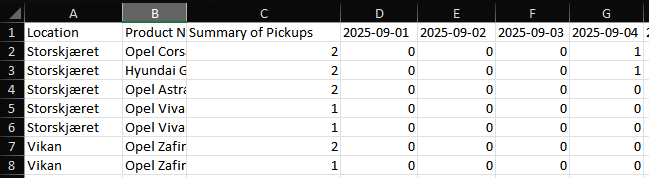
A calendar-style overview of how many pickups (i.e. order start dates) are scheduled per product, per day for a selected period.
Key columns include:
- Location & Product Name – Where and what
- Summary of Pickups – Total pickups for the product across the date range
- Each Day Column – A separate column for each day showing how many pickups are scheduled
When to use it:
- To plan for daily operations (staffing, prep, logistics)
- For seeing rental traffic patterns and daily volume spikes
- When answering questions like “how busy are we on April 14?”
Watch out for:
- Doesn’t show returns — only pickups (start dates)
- Only includes products with at least one pickup in the date range
Example:
Inventory List 📃
What it shows:
This report displays the full current inventory list at a selected date. It includes active and inactive inventory items for both physical and virtual inventory item types. Retired inventory is not included.
Key columns include:
- Inventory ID, status, units
- Product type, location
- Added date, supplier, cost
- Product name, Product ID, barcode, inventory note
When to use it:
- When you need a full overview of current inventory items
- When you need to check active/inactive inventory
- When you need inventory details such as location, supplier, cost, barcode, or notes
- When reviewing or cleaning up inventory data
Watch out for:
- Retired inventory is not included
- This report shows inventory at the selected date, not order or rental history
- Use the Inventory log if you need to see what changed over time
Inventory Log 📋
What it shows:
A log of inventory status changes for both current and retired inventory items
Key columns include:
- Timestamp, Product name
- Inventory ID, Custom Inventory ID
- Action type, data/field changed, User ID, User name
When to use it:
- When you need to review what changed in inventory and when
- When you need to see who made inventory changes
- When investigating inventory status changes or unexpected updates
Watch out for:
- This report shows inventory changes, not the current inventory overview
- It may include retired inventory items
- Use the Inventory list report if you need the current inventory status