Change, update or extend an order
This article explains how to make changes to an existing order, including changing pickup or return dates, extending the rental period, changing products, quantities, prices, discounts, delivery and location.
Step 1: Find the order you want to change and open it
- Go to the administration page and click on "Orders" in the menu on the left. Then you will be able to see all your orders. Use the filters if needed. Click on the order you want to change to open it.

Step 2: Make the changes to the order
- Find the product or product line you want to change, then click the "Pen" button at the far right to see the options you have.
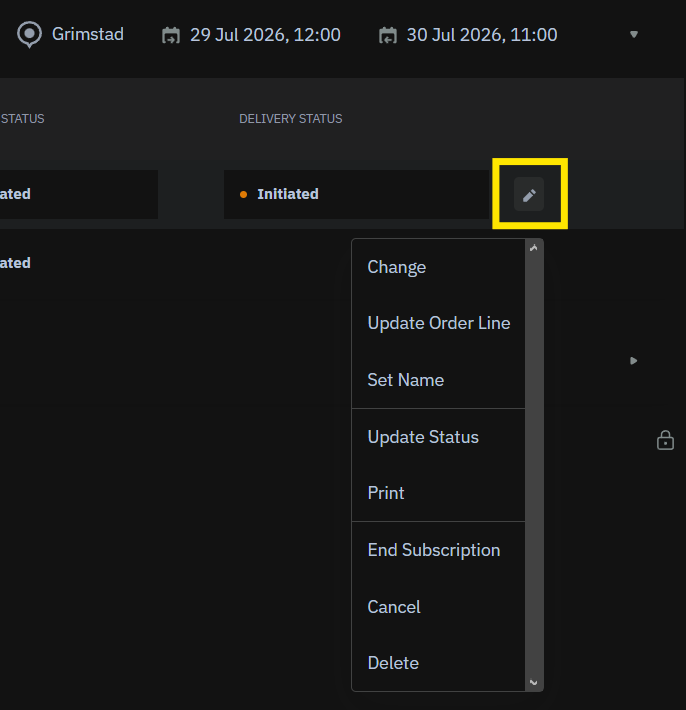
The drop-down menu that opens gives you three choices to change the order.
- Change
-
Change the entire order: quantity, time/dates, variants and location.
Remember that you can not change historical orders, just move orders forward in time.
- Use this if you want to extend an order or switch to a different product or variant or another location.
-
- Update Order Line
- Allows you to change product name, device price, inventory ID and statuses.
- Use this if you want to change the inventory item or edit the price / add a discount.
- Cancel
- Cancellation and release of the rental unit.
- Use this if you want to cancel the order.
Please note that when adding new accessories to your product, you will still need to confirm the current rental dates. This is because "Change" can be used to change both the date, number of units and add / subtract accessories at the same time.
Based on the updated order, Sharefox also suggests the amount to charge or refund.
- Total price
- The total price for the new order.
- Total paid
- The total amount already paid.
- Due amount or overpaid amount
- The difference between the total price of the updated order and the amount already paid.
Change variants in an order
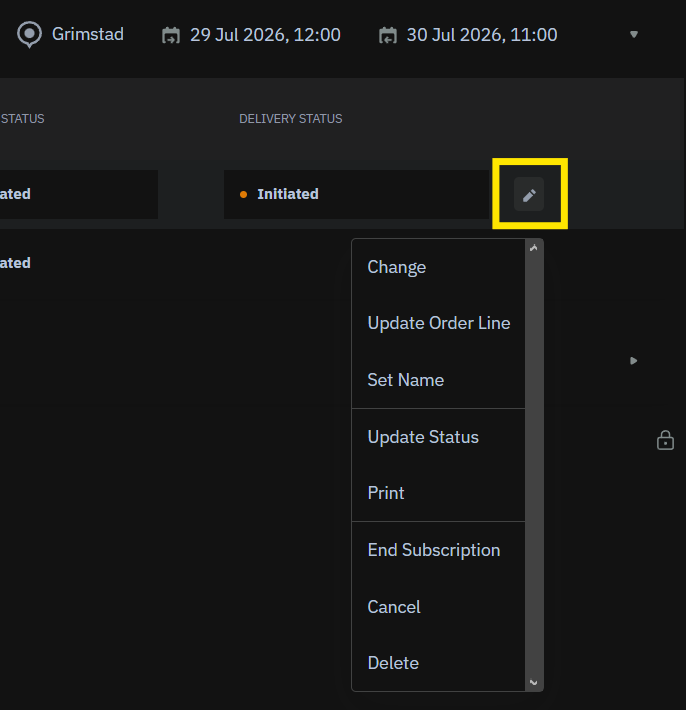
- Click on the pen on the far right.
- Then click on Change.

Extra note:
Every order that gets the Order Status: Booked
changed manually by the admin, will not receive an email automatically.
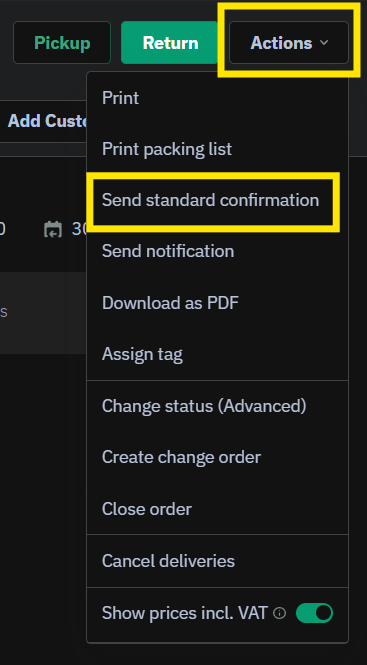
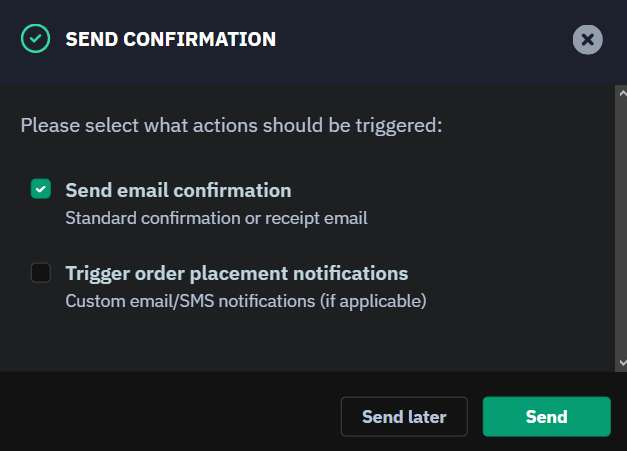
If you want to send an email confirmation to a customer whose status has been changed by the admin, there is an option to do it:
- Go to the order
- Click on "Actions" (right top corner)
- Choose "Send standard confirmation"
- Choose which type of confirmation to send and click "Send"